 Harbour
How to rename receipts and invoices automatically on a Mac
Updated 12 November 2026
Receipts arrive as Invoice-38417.pdf, document(3).pdf or a photo called IMG_5521.HEIC, and a year later you cannot find the one you need. A consistent name fixes that. Here is what a good name looks like, how to do it by hand, and four ways to automate it on a Mac, with the limits of each.
What a good receipt file name looks like
The name should answer the questions you will ask later (when, who, how much) without opening the file, and sort sensibly in Finder. A pattern that works:
2026-10-14 Amazon receipt £23.99.pdf
2026-10-14 Amazon receipt £19.99 + £4.00 VAT.pdf
2026-11-02 Screwfix invoice £86.40 order 1180342.pdf- Date first, year-month-day.
2026-10-14sorts in date order in any list;14-10-26does not. Use the date on the receipt, not the day you downloaded it. - The shop as you would search for it. Amazon, not AMZN Mktp UK from the card statement.
- The type. Receipt, invoice, credit note, refund: it tells you at a glance whether money went out or came back.
- The total, with the currency. If you claim expenses or are VAT-registered, the VAT shown separately saves opening the file at the end of the quarter.
- An order or invoice number when the same shop sends several on one day.
- Avoid slashes and colons. macOS treats them specially in file names, so write
2026-10-14, not14/10/2026.
Keep them in one folder per year (or per tax year) and the names do the rest of the filing.
1. By hand in Finder (free)
Select the file and press Space to open it in Quick Look, read the date, shop and total, close it, then press Return to rename. With a dozen receipts a month that is a few minutes' work, and nothing can misread a total because you are the one reading it.
Finder's batch rename (select several files, Control-click, Rename) can replace text, add text or number a set of files, but it only works from the existing names. It cannot look inside a file, so it cannot put a receipt's date or total into the name.
2. Shortcuts (free, built in)
Shortcuts can read a document and rename it. A typical receipt shortcut gets the text from the PDF (or uses Extract Text from Image for a photo), pulls out the date and total with Match Text and a regular expression, builds the new name with Text, and finishes with Rename File. Since macOS 26 Tahoe a folder automation can run it whenever a file is added to a folder.
macOS 26 also added a Use Model action that hands text to Apple Intelligence. You choose the model: On-Device runs on the Mac without a network connection and suits simple requests; Cloud and Cloud Pro run on Apple's Private Cloud Compute; Extension Model sends the request to ChatGPT. Asking the on-device model "what is the shop, date and total in this text?" can replace a fragile regular expression.
The limits: you build and maintain every step yourself. A regular expression written for one shop's layout often misses another's. A language model's answer is free text, and nothing in a plain shortcut checks that the total it gives you actually appears in the receipt, so add a check or a confirmation step before you trust it with a year of receipts. And only the On-Device choice keeps the document on your Mac.
3. Automator (free, older)
Before Shortcuts, the built-in route was an Automator Folder Action: File > New, choose Folder Action, pick the folder, then actions such as Extract PDF Text and a Run Shell Script step that parses the text and renames the file. It still runs on current macOS, but it has no text recognition for photos, no access to Apple Intelligence, and the parsing is a script you write. Most people starting today will find Shortcuts easier.
4. Hazel (paid, runs all the time)
Hazel from Noodlesoft is the long-standing tool for this. Its Contents condition reads the text of a file, and set to contain match it takes a pattern and can grab parts of the text into custom attributes, such as a date or an invoice number, which a Rename action then puts into the new name. Since Hazel 6 it also does on-the-fly text recognition on images and on PDFs that have no text layer, without changing the file.
- Strengths: it runs in the background whether or not any app is open, on as many folders as you like, and the same rule can rename, move, tag and sort into subfolders in one go. It does not need Apple Intelligence and runs on macOS 13 Ventura or later.
- Limits: a pattern matches the shape of the text, so you write the patterns, and a rule tuned to one supplier's layout may need a second rule for another. Shop names come out as the document prints them unless you add rules to tidy them.
- Price: $42 for a single licence, $65 for a family pack, with a 14-day trial.
Pick Hazel if your receipts come from a handful of suppliers with steady layouts, you want it to run with no app open, or your Mac does not have Apple Intelligence.
5. Harbour's smart naming (paid, runs while Harbour is open)
Harbour is a Mac file manager whose folder rules (since 1.3) can, from version 1.4, read receipts and invoices and rename them. Instead of patterns, it uses Apple's on-device model to find the pieces, then checks them against the document.
- You arrange the name from pieces: date, shop, type and total, and optionally the total excluding VAT, the VAT and the order number. The examples at the top of this page are names it makes.
- It reads PDF text, and photos and scans through on-device text recognition. The condition Looks like a receipt or invoice keeps the rule away from everything else in the folder.
- It never invents a value: every date, shop, total and order number has to appear in the document's own text, or it is treated as missing, and the file goes to a Review window with the gap highlighted for you to fill in or leave the name alone.
- Ask me before renaming is on by default: one notification, then a Review window showing what was read, where you can edit any field and approve or skip.
- It learns from your corrections, on your Mac. Change AMZN Mktp UK to Amazon once and that rule uses it next time. After ten approvals in a row from one shop with no changes it asks Stop asking about Amazon?; only your yes changes anything, and a later edit for that shop brings the question back. Each rule lists what it has learned, and any item can be deleted.
- The document is read on the Mac and never sent to FableForge, Apple or anyone else.
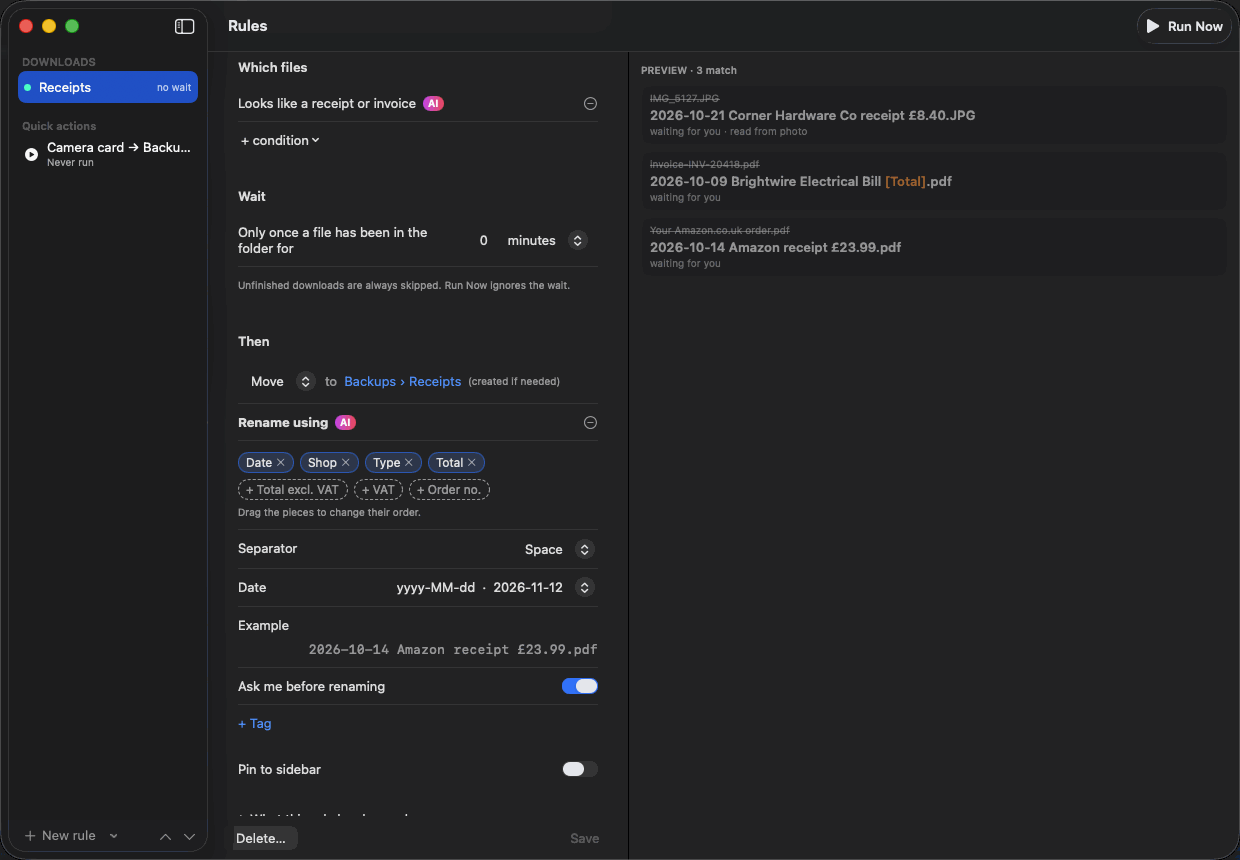
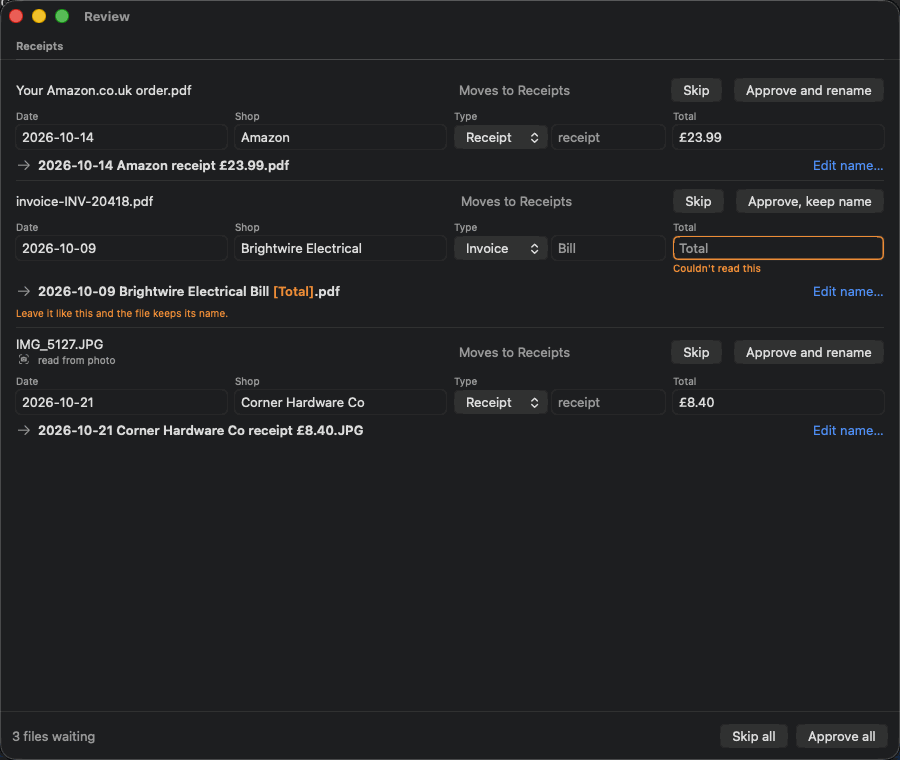
The limits, plainly: smart naming needs Apple Intelligence turned on, on a Mac that supports it and in a language and region Apple Intelligence supports (Harbour downloads nothing extra; macOS fetches the model). Without it the option is greyed out with the reason. It reads local folders only, never files on a network drive. Like all Harbour's folder rules, it runs only while Harbour is open. Harbour needs macOS 26 Tahoe on Apple silicon and costs £19 once, with a free 14-day trial.
Which to pick
- A few receipts a month: rename them by hand with Quick Look. It is quick and never wrong.
- Happy to build it and want it free: a Shortcuts folder automation, using the On-Device model if you want the text kept on your Mac.
- Steady suppliers, background filing, any recent macOS: Hazel.
- Receipts from all over, on macOS 26 with Apple Intelligence, and you want to check each name before it changes: Harbour's smart naming.
- Receipts that live on a NAS: not Harbour, which reads local folders only for this; Hazel or a shortcut pointed at the share.
The same tools can tidy the rest of the folder too; see how to keep your Mac's Downloads folder tidy automatically.
Sources
Checked 12 November 2026. Hazel prices are list prices on Noodlesoft's store on that date.
- Apple: Use Apple Intelligence in Shortcuts on Mac (Use Model and its four choices), What's new in Shortcuts for macOS 26 (folder triggers), Automator User Guide
- Noodlesoft: Attribute reference (Contents, contain match, text recognition), Custom text attributes, Using custom attributes in actions, What's new in Hazel 6, Hazel 6.1.2 release notes, store